Map controls and gestures
On this page
You move around the map the way you move around most online maps: drag it, scroll or pinch to zoom. A few extra controls let you turn and tilt it, show where you are, and measure things.
#With a mouse or a trackpad
| To | Do this |
|---|---|
| Move the map | Drag it. |
| Zoom in or out | Scroll, or use the + and − buttons. Double-click to zoom in on a spot. |
| Turn and tilt | Hold Ctrl and drag: left and right turns the map, up and down tilts it. |
| See what is at a spot | Right-click it. |
| Open a place on the map | Select its name or icon. |
#With your fingers
| To | Do this |
|---|---|
| Move the map | Drag with one finger. |
| Zoom | Pinch, or spread two fingers. |
| Turn | Twist two fingers. |
| Tilt | Move two fingers up or down together. |
| See what is at a spot | Press and hold it. |
#The map buttons
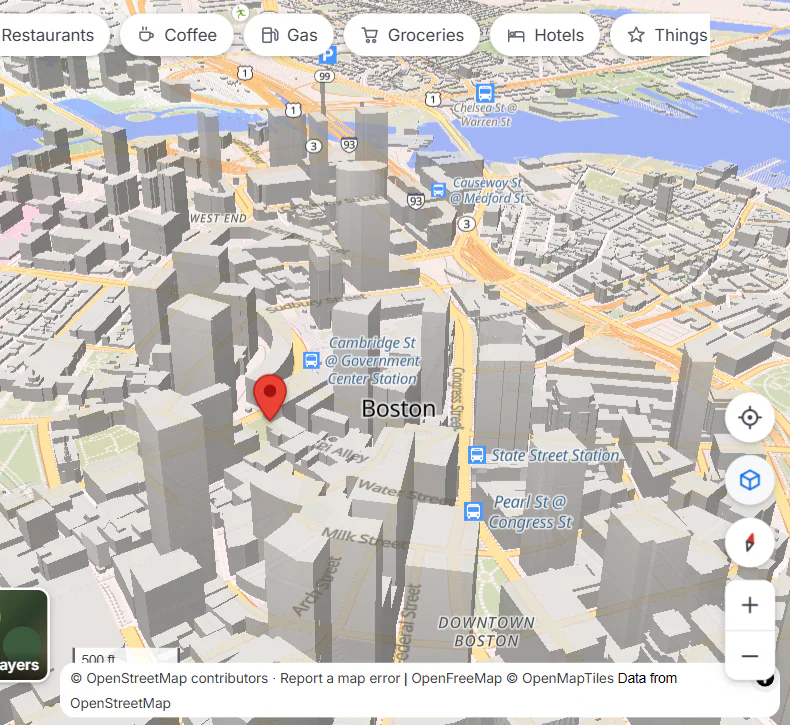
Downtown Boston after selecting the tilt button. The compass shows which way is north.
- 1Tilt the map: select again to flatten it
- 2Compass: select to turn the map back to north
At the bottom right of the map, from the top:
- Show your location: your browser asks whether to share your location, then the map shows you as a blue dot, with a circle for how precise the position is. Select it again to keep following you or to stop.
- Tilt the map (3D): tilts the map so buildings and hills stand up. Select it again to flatten it.
- Reset to north: the compass needle points north; select it to turn the map back to north and flatten it (with 3D terrain on, it keeps the tilt).
- Zoom in and Zoom out.
At the bottom left are the Layers button and a scale bar, which follows your choice of miles or kilometers.
#Keys
- / jumps to the search box.
- + and − zoom in and out after you have clicked the map.
- Esc closes the open menu, a photo or the Measure tool.
#The right-click menu
Right-click any spot on the map, or press and hold it on a touch screen.
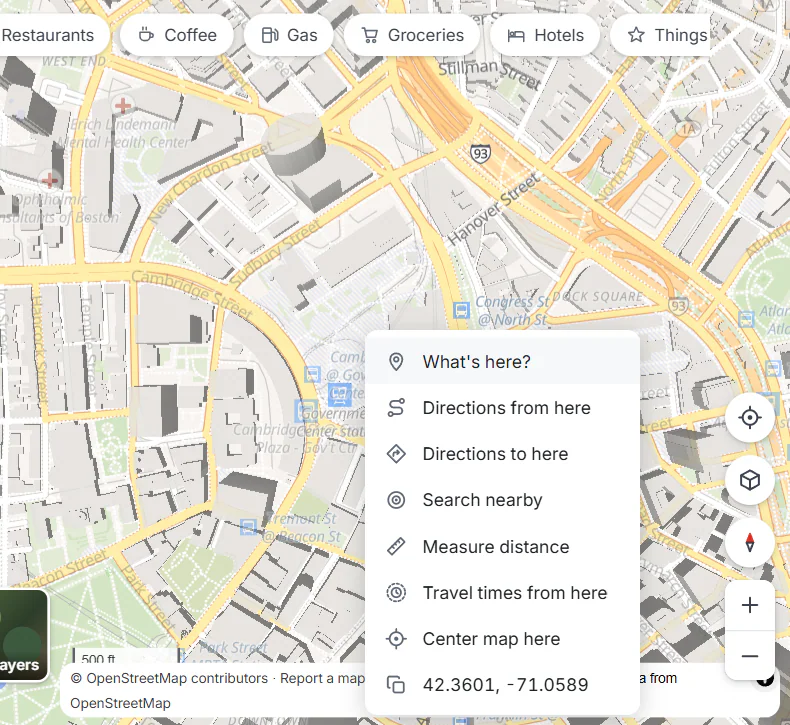
The menu at a spot. The last line shows the spot's coordinates; select it to copy them.
- 1What is at this spot
- 2Start or end a route here
- 3Measure a distance or an area
- 4How far you can get from here
| Choice | What it does |
|---|---|
| What's here? | Drops a pin and shows the address, elevation, nearest town and more. See Place pages. |
| Directions from here, Directions to here | Starts or ends a route at this spot. |
| Add a stop here | (While you have a route.) Adds this spot as a stop. |
| Search nearby | Offers kinds of places to search for around the spot. |
| Measure distance | Starts measuring from this spot. |
| Travel times from here | Shows how far you can get in 10, 20 or 30 minutes. See Travel times. |
| Center map here | Moves the spot to the middle of the map. |
| The coordinates | Copies them. |
#Measure a distance or an area
-
Right-click where you want to start and choose Measure distance, or open Layers and select Measure.
-
Click the map to add points. The box at the top right shows the Total distance along all of them.
-
To measure an area, click the first point again to close the shape: the box adds the Area inside it.
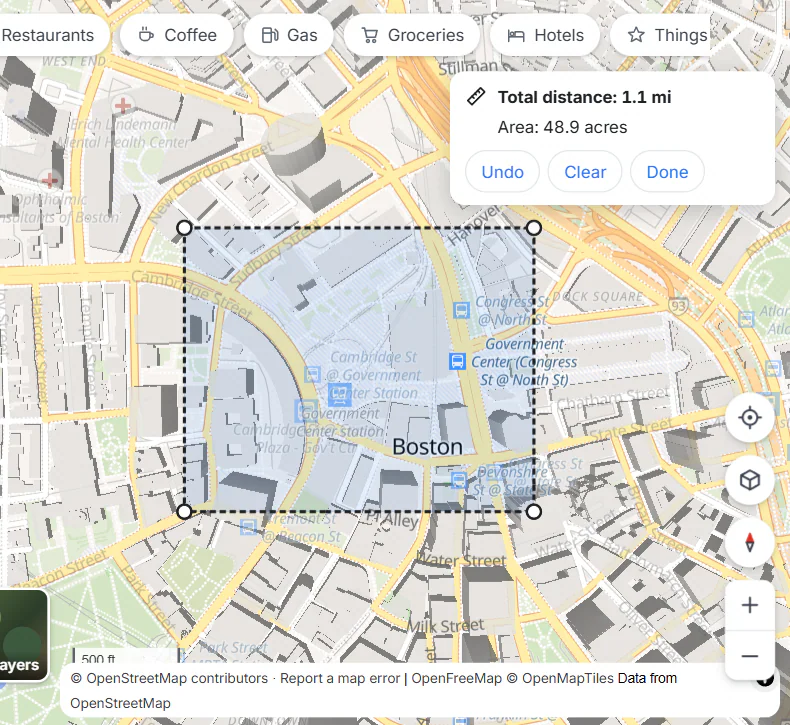
A closed shape around a few blocks of Boston: the way around it is 1.1 miles and it covers about 49 acres.
- 1Total distance and area; Undo, Clear or Done
-
Undo removes the last point, Clear starts over, and Done (or Esc) puts the tool away.
Distances are measured in straight lines between your points, not along roads; for a road distance, use Directions.
#The side panel and Back
- The arrow at the top of the panel returns to what you were looking at before. Your browser's Back button does the same.
- The small arrow on the edge of the panel hides it, so the map fills the window; select it again to bring the panel back.
- The address in your browser keeps up with the map: copy it and the link opens the same view, at the same zoom, with the same layers.
#On a phone
On a narrow screen the panel becomes a sheet over the bottom of the map.
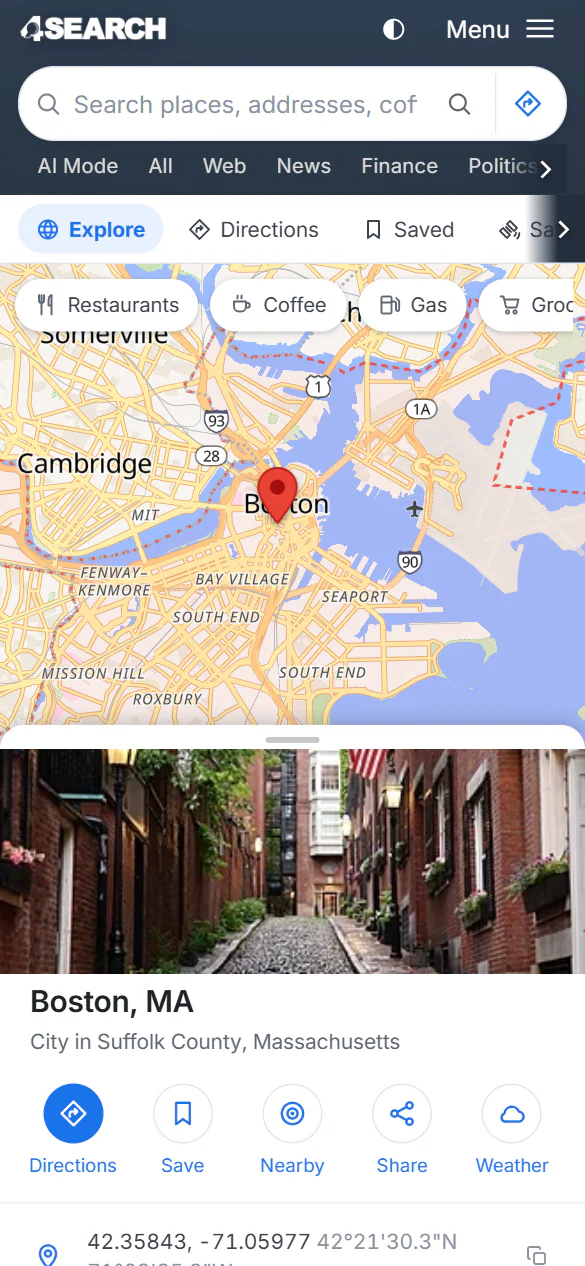
Boston on a phone. The panel is a sheet; drag its grip to see more of the panel or more of the map.
- 1Search
- 2Drag the grip up for more of the panel, down for more of the map
- 3The same buttons as on a computer
- Drag the grip at the top of the sheet up for more of the panel, down for more of the map. Tap the grip to step between the three heights.
- When you select one of the places listed on a map type's page, or turn on a layer, the sheet drops down so you can see the map.
- Share opens your phone's own sharing menu.
#Common questions
Why does "Show your location" not work?
Your browser must be allowed to share your location with the site. If you said no, change it in your browser's site settings, then try again. Some computers have no location hardware and give only a rough position.
Is my location sent anywhere?
Showing yourself on the map happens in your browser. When you use your location as the start of a route, the position goes to 4Search to work out the route, with nothing that identifies you.
How do I get the map flat again?
Select the compass (Reset to north), which turns it to north and flattens it, or the tilt button.
Can I make the map bigger?
Hide the side panel with the small arrow on its edge, or make the browser window full screen.